Back to enrollment portal

PremierSupportIBO Learning Center

Your 12-step enrollment walkthrough

Follow the same order shown in your enrollment portal. PremierSupport-controlled steps happen inside PremierSupport OS; Arise remains an external platform.

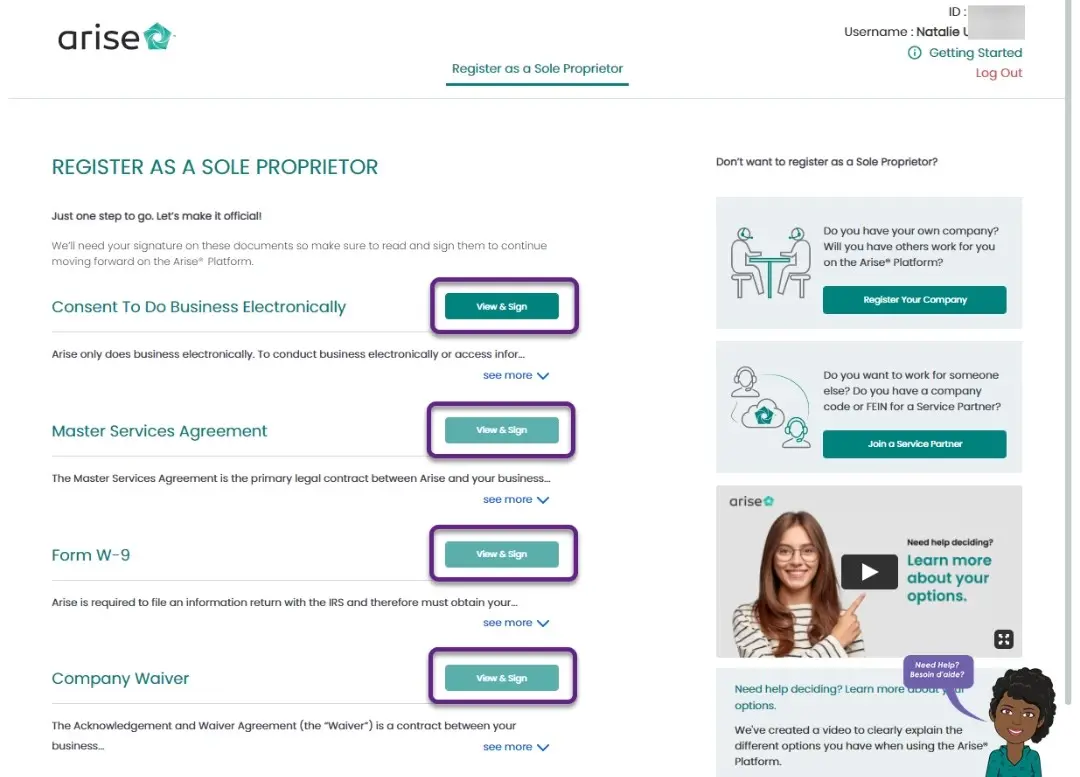
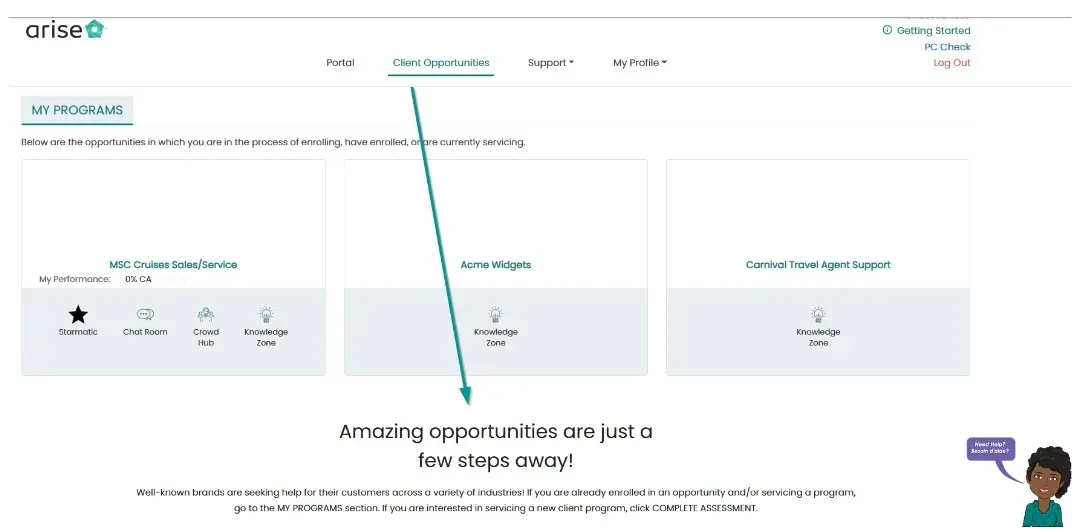
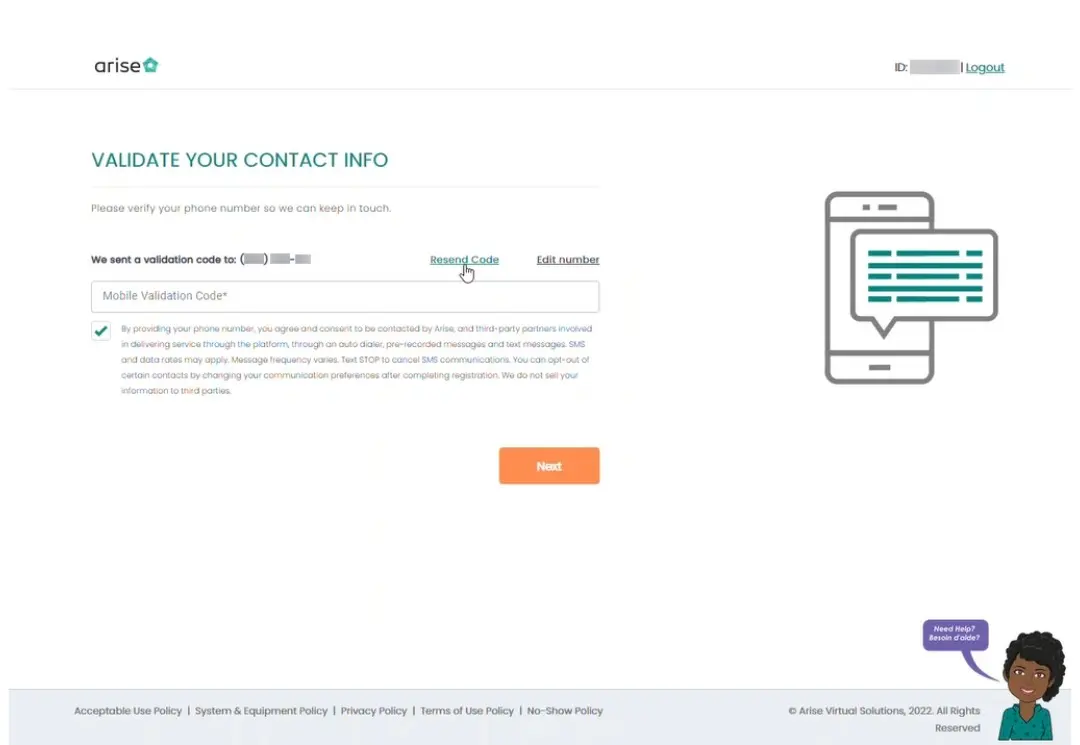
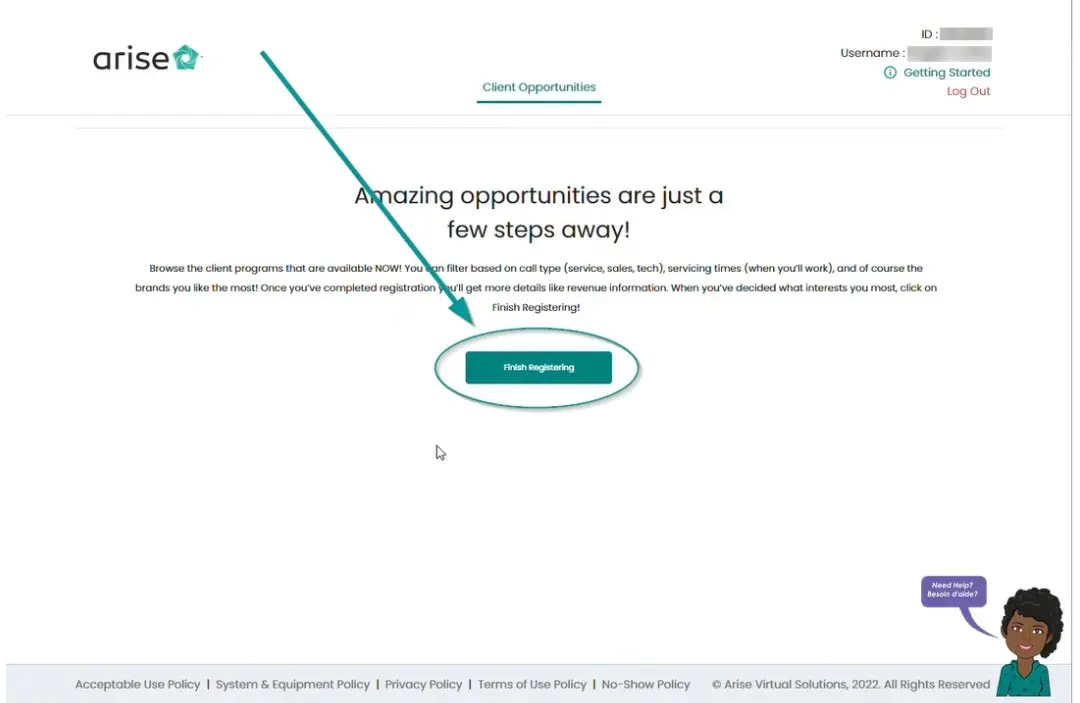
Visual accuracy: All eight screenshots you supplied are shown below at full width. Six are numbered in the main registration, enrollment, and opportunity sequence; two are clearly labeled reference-only. The Service Partner ID and pending-request images contain the requested PremierSupportIBO training-field edits.

Real walkthrough image not uploaded yet

Step 1

PremierSupport

Review eligibility & requirements

Review the independent-contractor model, workstation and internet expectations, PremierSupportIBO administration fee, and the overall enrollment process before moving forward.
Real walkthrough image not uploaded yet

Step 2

PremierSupport

Complete Call Center Readiness Assessment

Complete the equipment, internet speed, commitment, customer-service readiness checklist, and short communication video. HR reviews this before you continue onboarding.

Real walkthrough image not uploaded yet

Step 3

PremierSupport

Contractor Approved

After HR approves your Call Center Readiness Assessment, PremierSupportIBO formally approves you to continue onboarding as an independent contractor. The reviewer and approval date are recorded in PremierSupport OS.

Real Arise reference screenshots

Arise can change its website without notice. If your live screen looks different, follow the current prompts shown in your Arise account.

Step 4

External platform

Create your Arise profile

After PremierSupport contractor approval, create your profile at the official Arise registration site. During registration, verify your mobile number and select Finish Registering when prompted. The Learning Center shows the matching real Arise screens in order.

Real walkthrough image not uploaded yet

Step 5

External platform

Complete required Arise assessment

Complete the assessment, identity verification, PC scan, and other onboarding items shown in your live Arise registration flow. Exact sequence and wording can change, so follow the current prompts in your own Arise account. A current screenshot for this stage has not yet been added.

Use the verified destination button above. A current real Arise visual has not been uploaded for this step yet.

Step 6

External platform

Enroll with PremierSupportIBO

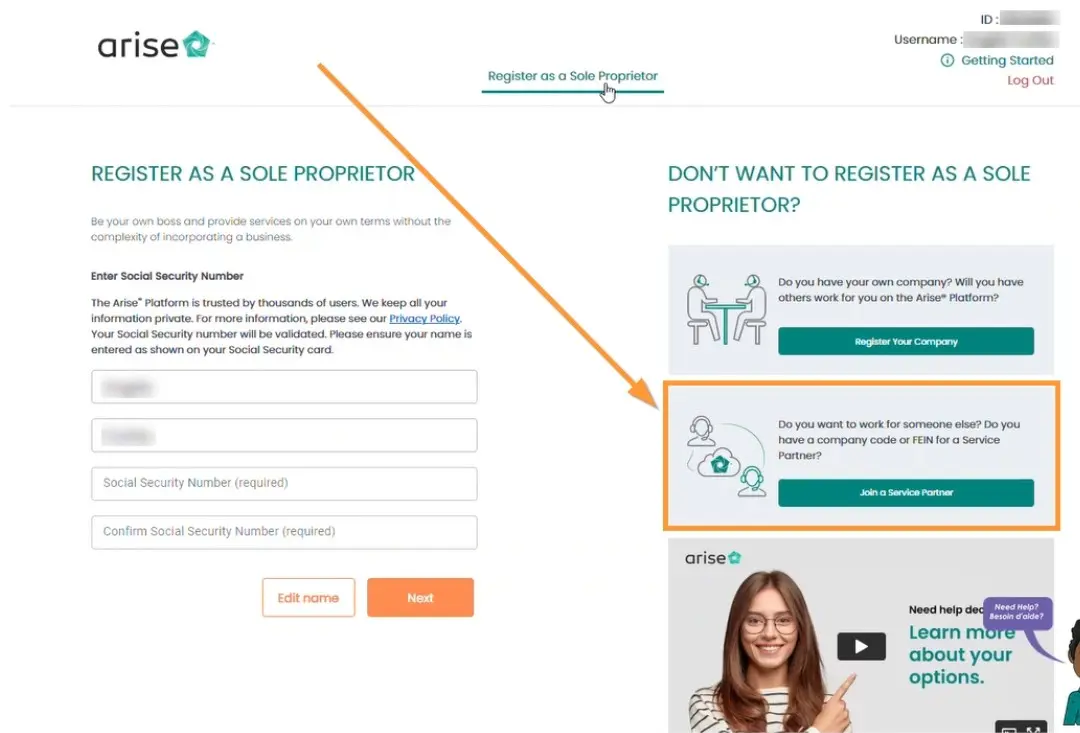
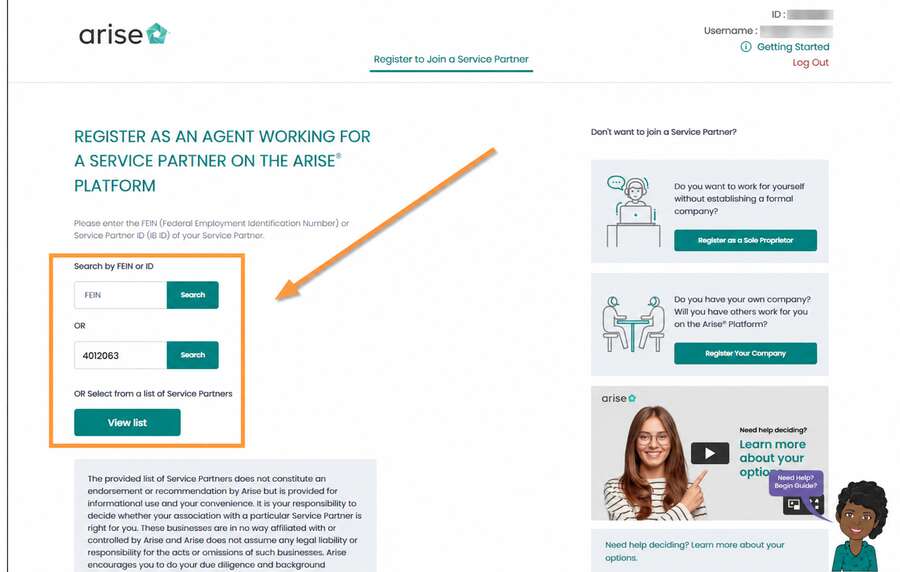
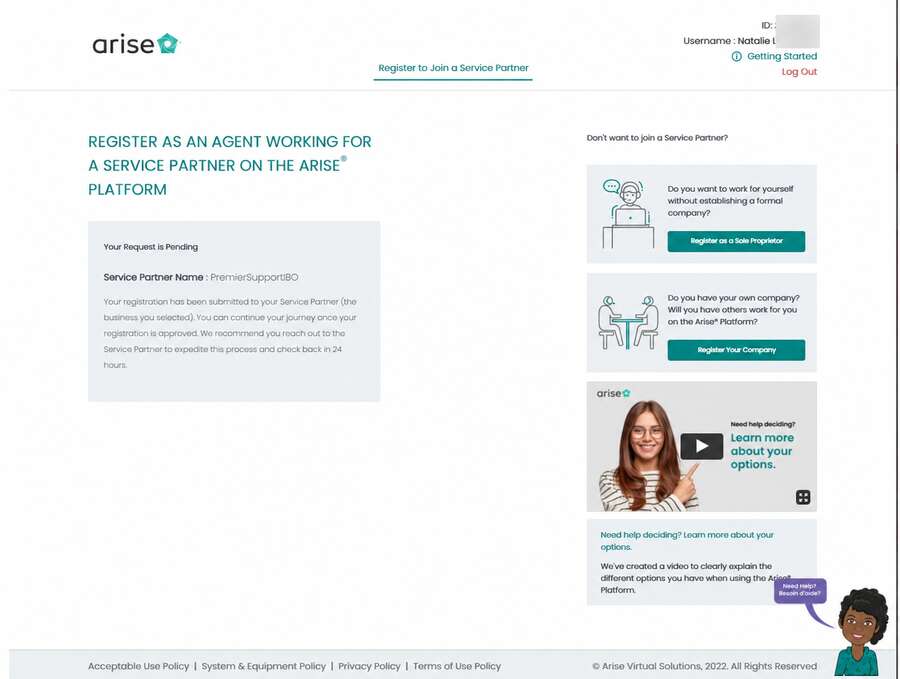
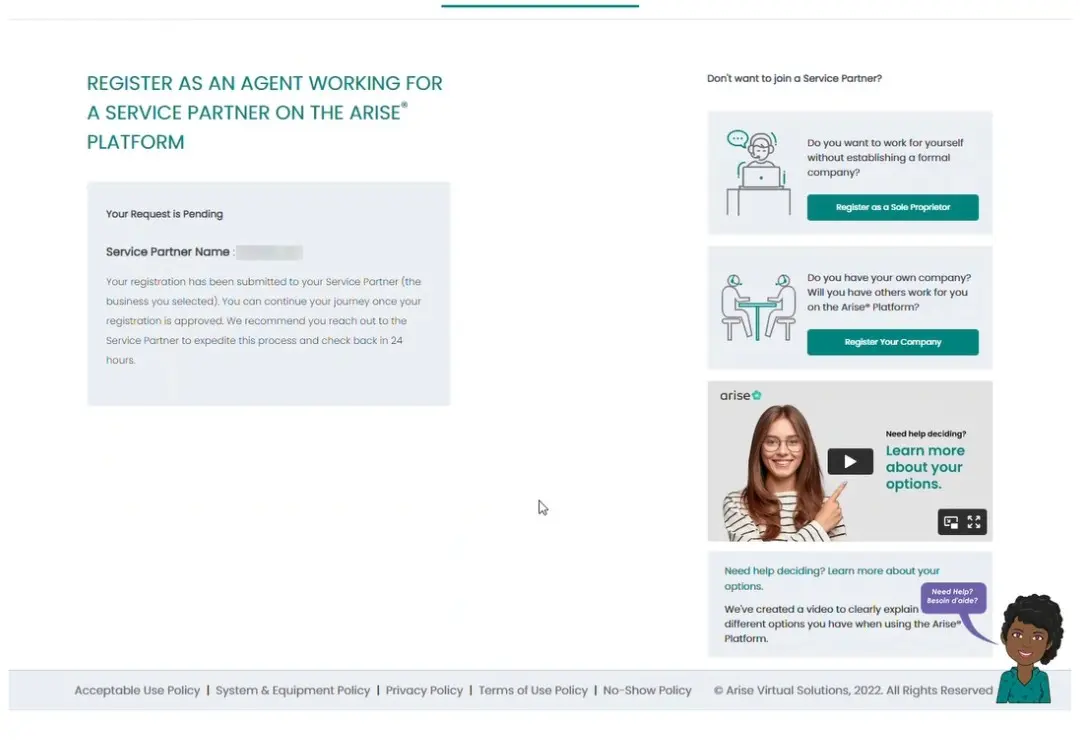
During the new-user Arise registration flow, choose Join a Service Partner, enter Service Partner ID 4012063, confirm PremierSupportIBO, and submit the request. The Learning Center shows these screens in the same order, including the pending-approval confirmation.

Real walkthrough image not uploaded yet

Step 7

PremierSupport

Sign PremierSupportIBO agreement

After PremierSupportIBO enrollment is confirmed, your Independent Contractor Agreement is prepared for RabbitSign. Complete your required signature; the portal marks this step complete only after both required signatures are finished.

Real walkthrough image not uploaded yet

Step 8

PremierSupport

Complete W-9 through QuickBooks Contractor Payments

After PremierSupport sends your contractor invitation, complete your W-9 and payment setup securely through QuickBooks Contractor Payments. PremierSupport OS tracks completion status but does not store your SSN/EIN.

Real walkthrough image not uploaded yet

Step 9

PremierSupport

Complete required system checks

Run the system or PC checks required for the client opportunity you intend to service. Requirements vary by client opportunity; follow the current requirements shown by Arise/client resources.

Real Arise reference screenshot

Arise can change its website without notice. If your live screen looks different, follow the current prompts shown in your Arise account.

Step 10

External platform

Choose your client in Arise

After the required onboarding gates are complete, log into Arise and open Client Opportunities. Review the programs available to your account, read each Opportunity Announcement, and choose the program you want. PremierSupport does not assign or control Arise opportunities.

Real walkthrough image not uploaded yet

Step 11

External platform

Complete client certification

After selecting an opportunity, complete the client-specific certification, training, practice, and assessments required before servicing. Requirements and timing vary by client program.

Use the verified destination button above. A current real Arise visual has not been uploaded for this step yet.

Real walkthrough image not uploaded yet

Step 12

PremierSupport

Ready to service

PremierSupport OS verifies the required onboarding milestones before this final step can be completed. Once approved, follow the servicing schedule and requirements for your selected client program.

base44
Edit with Base44